

1. Keep the Aldfaer project and its media
This guide transfers an Aldfaer tree using a GEDCOM export. Keep your working Aldfaer file, its backup and the folders containing photographs and scans. Write down the Aldfaer version and export date. Do not rename a native project file to .ged: an extension change does not convert its contents.
Make sure you can still open the original tree before starting. If your only copy is a backup you cannot open, restore or inspect it in the originating program first. Leave your original research available until you have reviewed the transferred records and decided where future changes will be made.
2. Export a GEDCOM copy from Aldfaer
Use the GEDCOM export facility in your installed Aldfaer version. Menu names and available options can differ, so check that version’s help for the exact command. Choose the full tree or a deliberate selection, and check the options for sources, notes, living people and media references. Record those choices with the export.
Save the exported .ged under a new name. Keep its stated GEDCOM version if shown. Leaves supports GEDCOM 5.5.1 and GEDCOM 7; the import manual lists accepted formats. Keep actual media separately, because a GEDCOM path may refer to a file still on your computer rather than include its contents.
Just want to see who is in the export? Follow the steps to view a GEDCOM file as a family tree.
3. Preview the destination and import
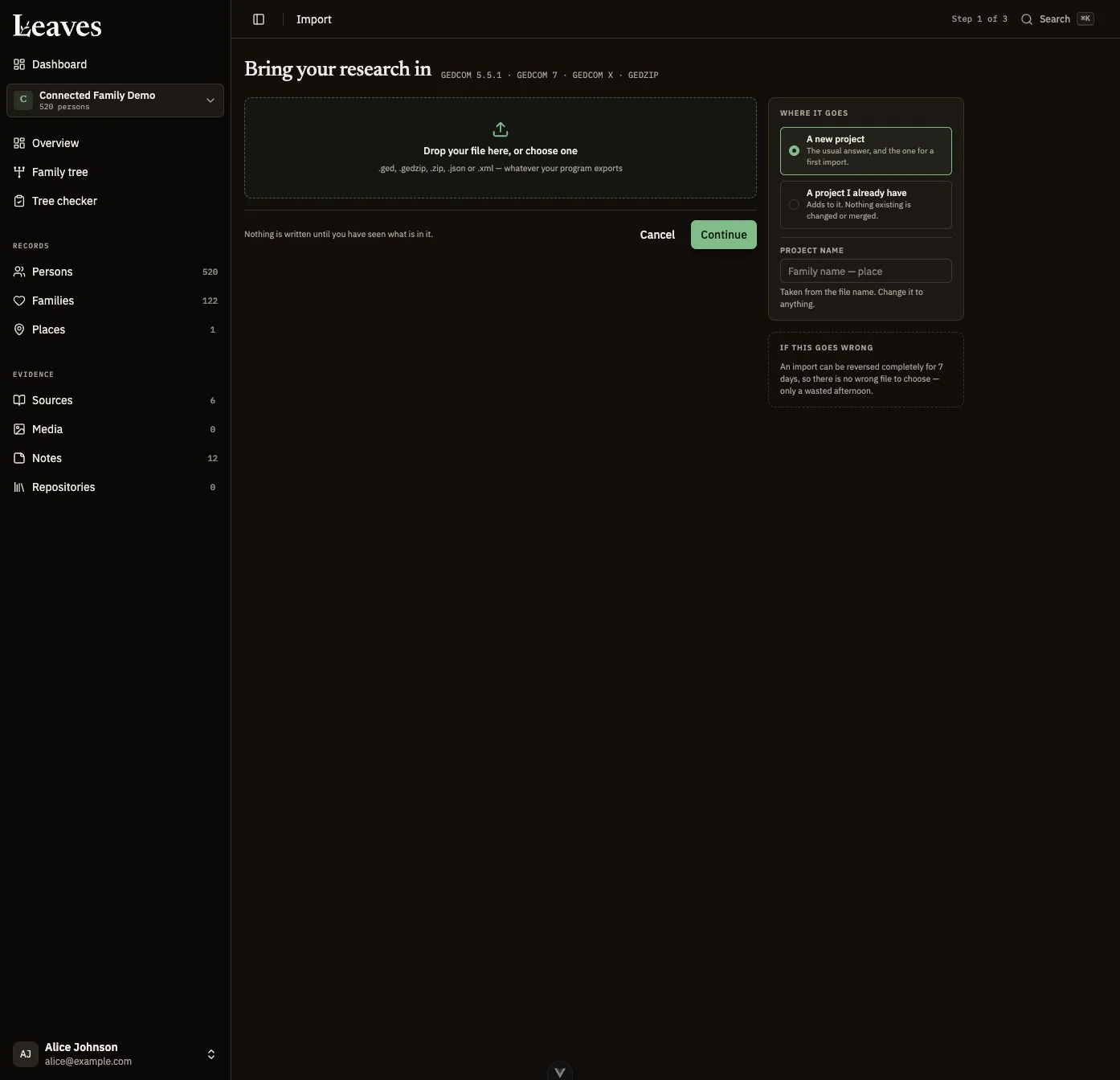
- Open Leaves and choose Import GEDCOM.
- Select the Aldfaer GEDCOM export, not the original working file.
- Check Where it goes. Free permits one project; do not select an existing unrelated tree just to bypass that limit.
- Choose Continue, inspect the preview and read the warnings before confirming the import.
- Wait for the report and keep it available while checking the resulting records.
If the preview shows an unexpected number of people or families, return to the export choices before proceeding. The full import checklist explains review, media recovery and the conditions for undoing an import. Do not assume every Aldfaer-specific field has a direct equivalent.
4. Compare a deliberate sample side by side
Choose examples that expose differences rather than only checking the first names in the list. Compare one large family, a person with several names, a partial date, a long note and a source with a detailed reference. Where relevant, include a second partnership and a non-biological parent-child link.
- People and families: verify names, partners, children and relationship types.
- Dates: verify years, approximations and ranges; “about” must not become an exact day.
- Sources: open the actual citation and compare its repository, reference and transcription.
- Notes: check line breaks, longer text and any program-specific formatting.
- Media: open a photograph itself; seeing its filename is not enough.
Record each discrepancy against a concrete example. Use the date guidance and source explanation to interpret the result. Matching record counts are useful but do not establish a lossless transfer.
5. Restore media and choose where to continue
If imported media records lack their files, use Restore missing media with your original image collection. Review matches and available storage. Free includes 250 MB; compare the plans if your collection needs more. Preserve a separate backup even after the files display correctly.
Decide whether you will continue editing in Leaves or maintain Aldfaer as well. Two independently edited copies can diverge. For later exports from the same tree, read the reviewed GEDCOM update workflow, including its identity and conflict checks. Repeated imports are not automatic two-way synchronisation.
Owners can export their Leaves project as GEDCOM 7 on every plan. Before sending it back to Aldfaer or another program, check that destination’s version support and test a small copy. Read the sharing guide if your goal is to let family view the online tree, rather than maintain another working copy.
The Aldfaer documentation for the File menu describes its GEDCOM export entry. Check the help in your installed version for its available export settings.