

1. Understand what a GEDCOM file carries
GEDCOM is a format genealogy programs use to exchange family tree data. A file with a
.ged extension can describe people, families, events, sources and notes. Different
programs can interpret or export details differently, so the extension alone does not establish
that every detail will transfer as you expect.
Photographs need a separate check. A file may contain references to images on your old computer rather than the images themselves. Keep the original media folder or an archive that includes the actual files. An image path is not a backup of the photograph.
2. Export a copy and keep the original
In your current genealogy program, find its GEDCOM export option. Choose the people and information you intend to move, and check its options for notes, sources, living people and media. Keep the original project and export unchanged so you can compare them with the result. Make a note of the export date, program and GEDCOM version if available.
Before uploading, check the intended destination and who will have access to it. For a first transfer, an empty project makes it easier to distinguish what came from this file. Importing the same file again is not a substitute for a synchronisation workflow and may introduce duplicate records.
3. Review the file before importing into Leaves
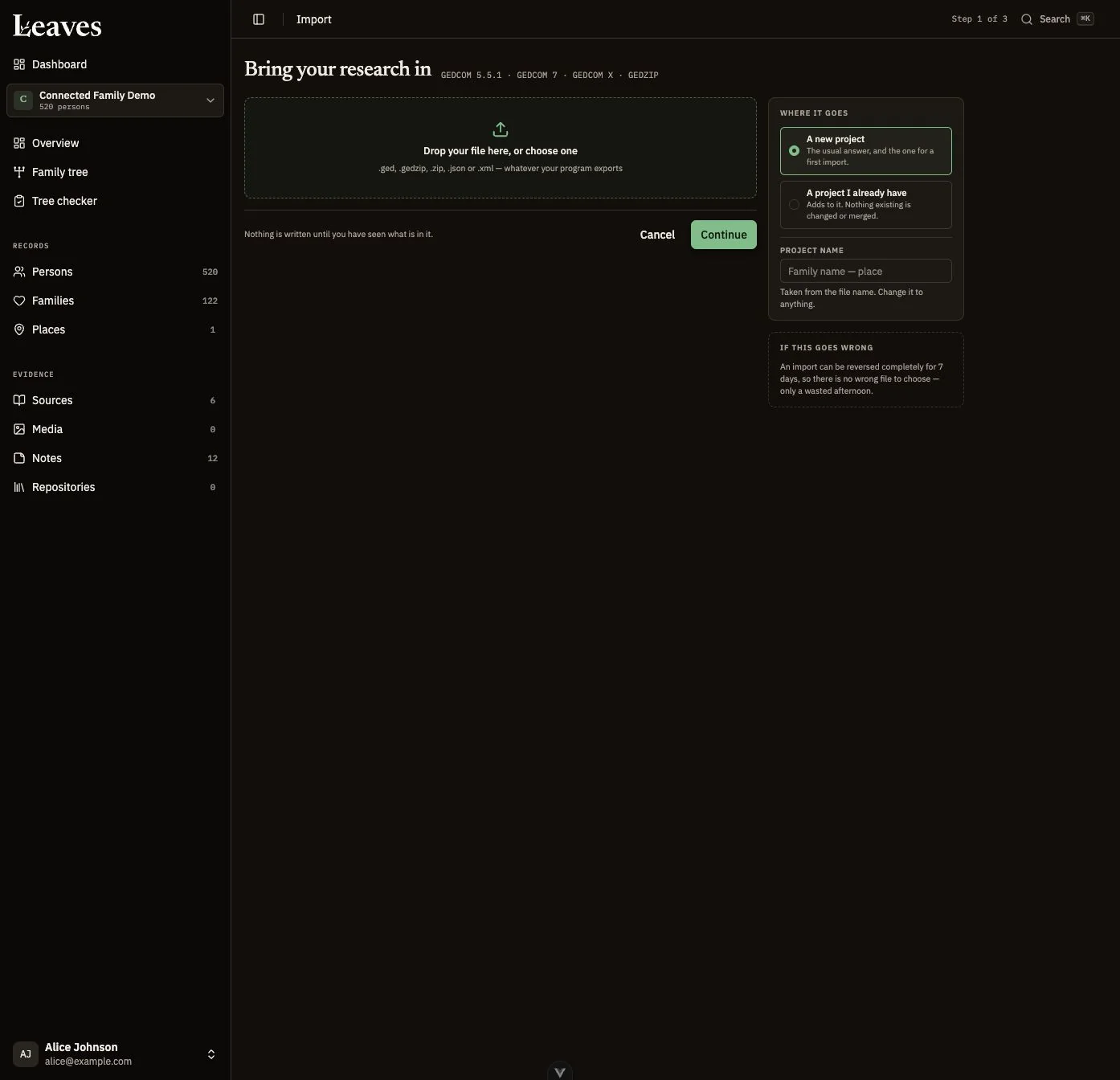
Leaves supports GEDCOM 5.5.1 and GEDCOM 7, with GEDZIP archives and supported GEDCOM X structures also handled by the import wizard. An archive of images alone is not a family tree import. For the exact accepted file types and troubleshooting, use the import and export manual.
- Choose Import GEDCOM from the dashboard or project entry.
- Select the export file and review Where it goes.
- Choose a new project, subject to your plan limit, or confirm the existing target project.
- Choose Continue and inspect What the file holds.
- Read character, collision and relationship warnings before choosing Import this file.
- Wait for the completed report and read its warnings before editing imported records.
The GEDCOM feature page explains the import report and portability limits. If the preview does not describe the file you intended to move, go back and replace it before committing the import.
4. Compare records, not just the total count
Counts are a useful first check, but a matching person count does not show that relationships, citations or date qualifiers survived. Open a small sample you know well, including a record with unusual details. Compare it side by side with the original program or export.
- Names: check accents, alternative names and non-Latin text you use.
- Families: check partners, children and recorded parentage types.
- Dates: check partial years, “about”, “before”, “after” and ranges.
- Evidence: open citations and compare page references and transcriptions.
- Notes: check longer text, line breaks and links.
- Media: open an actual image, rather than relying on its filename appearing.
Write down discrepancies with an example person or record reference. That gives you something specific to resolve and avoids treating every import warning as either harmless or a failure.
5. Restore missing media separately
If media records appear without their files, keep the imported references and locate the original images or archive. In Leaves, open Restore missing media from the import report or Media. Review the proposed matches before attaching files; similar filenames do not establish that two photographs are the same.
The media recovery instructions describe the matching workflow. Check storage availability before restoring a large collection, and retain a separate copy of original scans even after they display correctly in the project.
6. Decide whether to keep the import before substantial editing
Leaves can offer Undo this import to the project owner within seven days, provided the imported records have not been edited since. Check the report for availability and the remaining grace period. Read the confirmation carefully: undo removes imported data and is not a general undo for later research changes.
Once you accept the transfer, keep the original export and make a fresh export as your research grows. Leaves exports GEDCOM 7; check that your intended destination supports it and review a sample after transferring again. GEDCOM portability is useful, but you should still check program-specific fields and keep original media separately.
Starting from scratch instead? Follow how to start a family tree for a first interview, citation example and research plan.