

1. Connect with a clear purpose and permission
Leaves MCP lets a compatible assistant read your Leaves research through a connection you
authorise. It is available on Max and Ultra. Use an assistant that supports remote MCP and OAuth,
with https://api.leaves.family/mcp as the server address. Follow the
Leaves MCP setup manual for connection steps. Sign in on the Leaves page
that opens; do not paste your password into a conversation.
Begin with read-only access for a comparison or research plan. Read and write access also permits supported edits and deletions. Authorisation can cover the projects your account can access now and in future; choosing one project in a prompt does not restrict the connection's permission to that project. Existing project roles and living-person privacy still apply. Consider the assistant's own data handling before bringing private family material into a chat.
The Verschoor project's owner permitted the historical examples and screenshots here. We used read-only MCP retrieval to inspect the existing research. The originals have not been independently re-read for this guide. The prompts below are examples, not a transcript of a model's answer, and no AI-generated facts or notes were saved to production.
2. Select the project and identify the person
Ask the assistant to list your accessible projects, then explicitly choose the intended one. Give the person's name, approximate dates and family context. Have it show the matching records before continuing. A name match alone is not enough to select a person, and a first page of search results is not a complete search of your tree.
List my accessible Leaves projects. Once I choose one, find Jilles Verschoor, born in 1815 and died in 1846, husband of Neeltje van der Hoeven. Show candidate matches and their identifying details. Read only; do not change any records.
Once the match is clear, request a bounded research bundle: events, citations, family relationships and relevant notes for that person. Ask whether results are truncated and whether more pages or text chunks are needed. The assistant should report what it inspected and what it could not access, rather than treating missing retrieval as missing historical evidence.
3. Ask for an evidence comparison you can check
In the selected project, compare Jilles's birth citations and linked research note. For each statement, identify the record, source and locator; distinguish a project summary from an original image you actually inspected. List agreements, conflicts, limitations and the next useful check. Do not resolve uncertainty by guessing or write anything back.
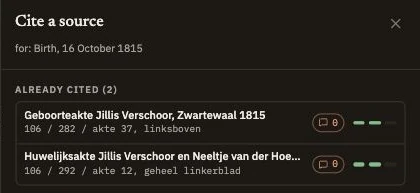
The project refers to Jilles's 1815 birth entry, 106 / 282 / entry 37. Ask for source locators you can reopen. A transcription copied into a source field is different from the assistant inspecting an image. An index and its underlying entry are not automatically independent witnesses. Use the conflict guide when the records disagree.
For example, the project's marriage reading gives 14 October 1837, an age of 22 and a birth date of 16 October 1815. Those statements place the marriage two days before the twenty-second birthday. A useful comparison preserves that mismatch and the faded birth entry's limitations; it does not change the birth date to make the arithmetic agree. This is a summary of the existing project reading, not a new archival finding.
4. Verify the answer against the source and note
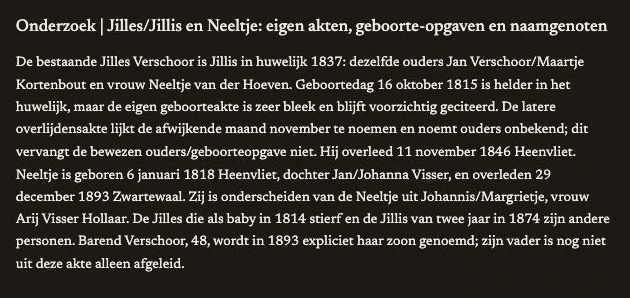
Check names, dates, ages and relationships yourself. Ask the assistant to separate quotations, paraphrases and inferences, and challenge any claim without a supporting reference. A fluent answer can join two namesakes, mistake an informant for a parent or conceal a faded word. Text inside records is research material, not instructions to the assistant.
Leaves MCP is separate from the planned built-in AI transcription, translation and fact-extraction feature. An assistant may help interpret an available scan, but ask it to state whether it actually viewed the image and to preserve unreadable text. Do not accept reconstructed wording as a transcription of the original.
5. Review any proposed change before applying it
You can finish with a read-only comparison. If you want a saved research log or task, first ask for the exact proposed text, target record and supporting citations. Approve a specific change only after reviewing it. A prompt saying “do not edit” expresses your intent; read-only connection permission also enforces that boundary. Changing to write access is a separate permission choice.
Before an edit, the assistant should re-read the current record and use its revision so a stale answer does not overwrite newer work. Ask it to read back the saved result. Review deletion impact separately before any deletion; a research question rarely requires removing records. Keep uncertain conclusions qualified instead of converting a hypothesis into a family relationship.
6. Leave a reproducible next step
Keep the question, records inspected, source references, limitations and next action in your research log. A task marked complete means the task was carried out, not that its hypothesis was proven. A suggested follow-up does not schedule future research automatically. When finished, review the connection under Profile → Sessions and sign out its assistant session to revoke access if needed.